
Free Three-Week Look-Ahead Schedule Template
By Wyatt Cooper · Published · 3 min read
Key takeaways
- Type the Monday of the coming week once: the sheet lays out last week and the next three weeks, Monday to Friday, and counts work days skipping your holidays.
- Each line carries a schedule ID, area, company, crew, dates, a critical flag and what must be ready before it can start.
- Rows 9–16 are a filled-in example on a made-up job; delete them before you use it.
This free Excel template is a three-week look-ahead schedule: one row per piece of work with its schedule ID, area, responsible company, crew, start and finish, and 20 day columns covering last week and the next three. Bars fill in from the dates, critical work shows red, and a column lists what must be ready before each line starts. No email address is asked for.
Download the three-week look-ahead (.xlsx)
Download (XLSX, no email needed)What is in the file
| Column | What to enter |
|---|---|
| Schedule ID | The master schedule activity the line comes from, so it traces back |
| Activity, area | One piece of work a crew can be planned around: a pour, a floor, an area |
| Responsible company, crew | Who does it and how many people |
| Start, finish | Dates; the work-day count is a formula (Monday to Friday, less the Holidays sheet) |
| Critical (Y/N) | Y for critical-path work; its bars turn red |
| 20 day columns | Last week (grey, as built) and weeks 1–3, filled in from the dates |
| What must be ready, Ready (Y/N) | Submittals, material, inspections, answers, access; Y only when it is |
| Notes | Anything the weekly meeting needs to settle |
It prints landscape on 11 by 17 inch paper, the sheet size the Navy's guide specification for look-aheads names. A second sheet holds non-working days and a third the instructions.
How to fill it in
Start from your updated master schedule and take every activity that runs in the next three weeks. Break each into pieces of five working days or less, as UFGS 01 32 17.00 20 asks, give each a company and dates, and write what it is waiting on. The full method, with a worked example, is in how to build a three-week look-ahead.
Use the same activity names on the look-ahead and in your daily logs. Federal quality-control reports must name work in "terminology consistent with the construction schedule" (UFGS 01 45 00), and it is a good habit on any job.
How it works in Conflo
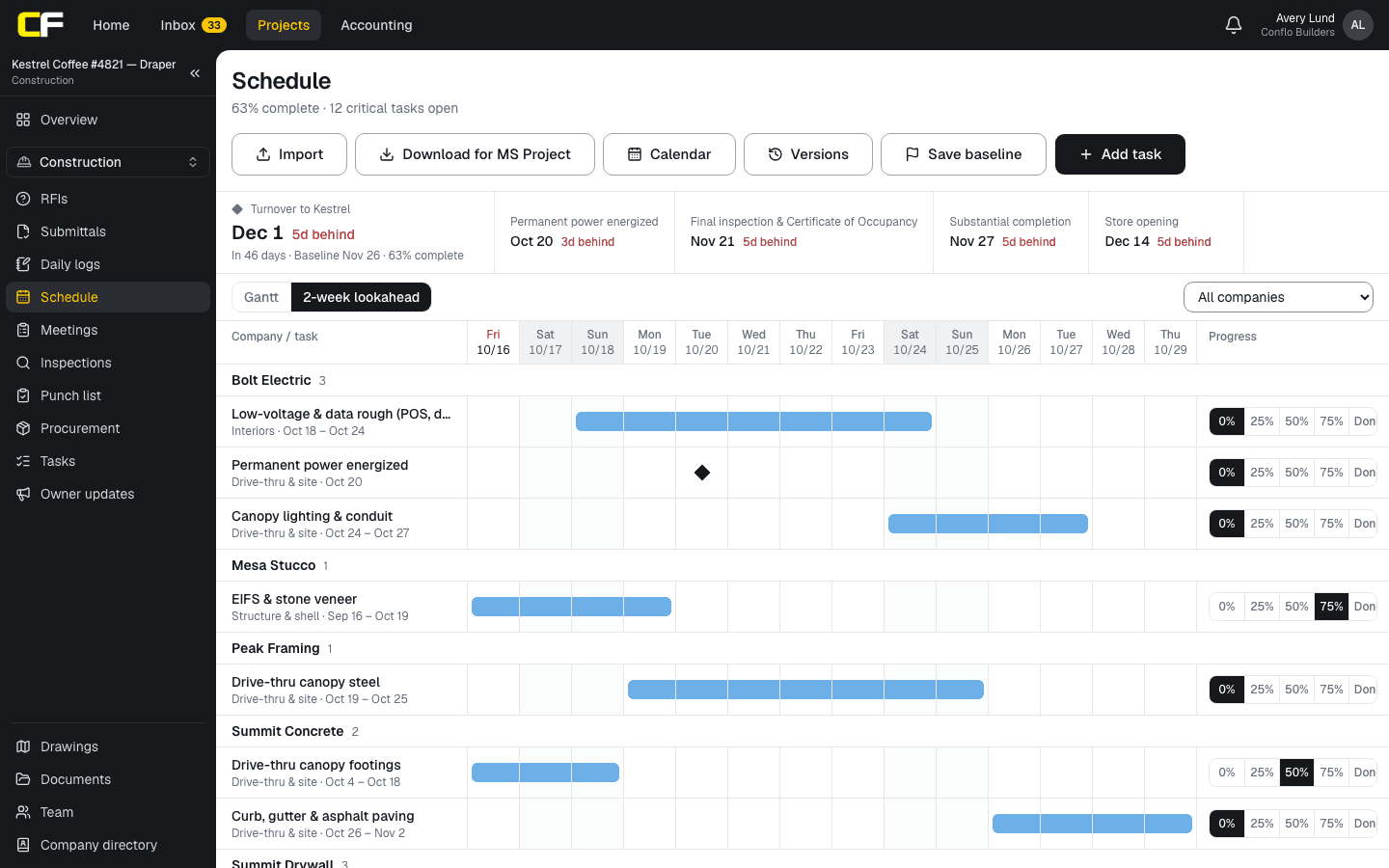
In Conflo's schedule, a two-week lookahead comes from the same tasks as the Gantt, grouped by company, and subcontractors update their own progress. It covers 14 days and has no make-ready column, so this template is the three-week version.
The bottom line
Download the sheet, type next Monday's date and copy in the next three weeks of work. Update it every Friday and walk it at the weekly meeting.
When you are ready to stop retyping the schedule, join the waitlist and run the lookahead from the schedule itself.
Sources
- UFGS 01 32 17.00 20, Cost-Loaded Network Analysis Schedules (May 2025), §1.3.2 Weekly Look Ahead Schedule Requirements — Naval Facilities Engineering Systems Command (Whole Building Design Guide). Read October 16, 2026.
- UFGS 01 45 00, Quality Control (August 2023, change 4), §1.12.1 Construction Documentation — Naval Facilities Engineering Systems Command (Whole Building Design Guide). Read October 16, 2026.
Questions
Does the template need macros?
No. The date columns, work-day counts and bars are ordinary formulas and conditional formatting, so it opens in Excel, Google Sheets or Numbers.
Can I make it a four-week look-ahead?
Yes. Copy five more day columns after week 3, each one day after the column before it (skip Saturday and Sunday), and widen the bar formulas' range to match.
How do I add holidays?
Type each date on the Holidays sheet, one per row. The work-day count skips them; the day columns still show every weekday so you can see the day off.
Related
Construction
How Do You Build a Three-Week Look-Ahead Schedule?
How to build a three-week look-ahead from the master schedule: crew-sized pieces of work, what must be ready, and how to run it at the weekly meeting.
· 7 min read
Definition
What Is the Critical Path in Construction?
The critical path is the longest chain of linked activities in a construction schedule. A worked five-activity example, float, and what a delay does.
· 4 min read
Construction
How to Write a Construction Daily Log (With Example)
How to write a construction daily log: what to record each day, a filled-in example, and the habits that make a log hold up in a delay claim.
· 6 min read
Template
Free Submittal Log Template (Excel)
A free submittal log template in Excel, no email needed: one row per spec item, with approve-by and submit-by dates worked out from lead times.
· 4 min read
Role hub
The General Contractor's Guide: Bid to Closeout
What a general contractor is responsible for at every phase of a commercial job, from bidding and buyout to RFIs, change orders, pay apps and closeout.
· 8 min read